
Control Your Golf Simulator From Your Phone or Tablet
TouchCaddie transforms your mobile device into a powerful, customizable controller for GSPro™.
Powerful Features
Transform your golf simulation experience with these powerful features
Intuitive Controls
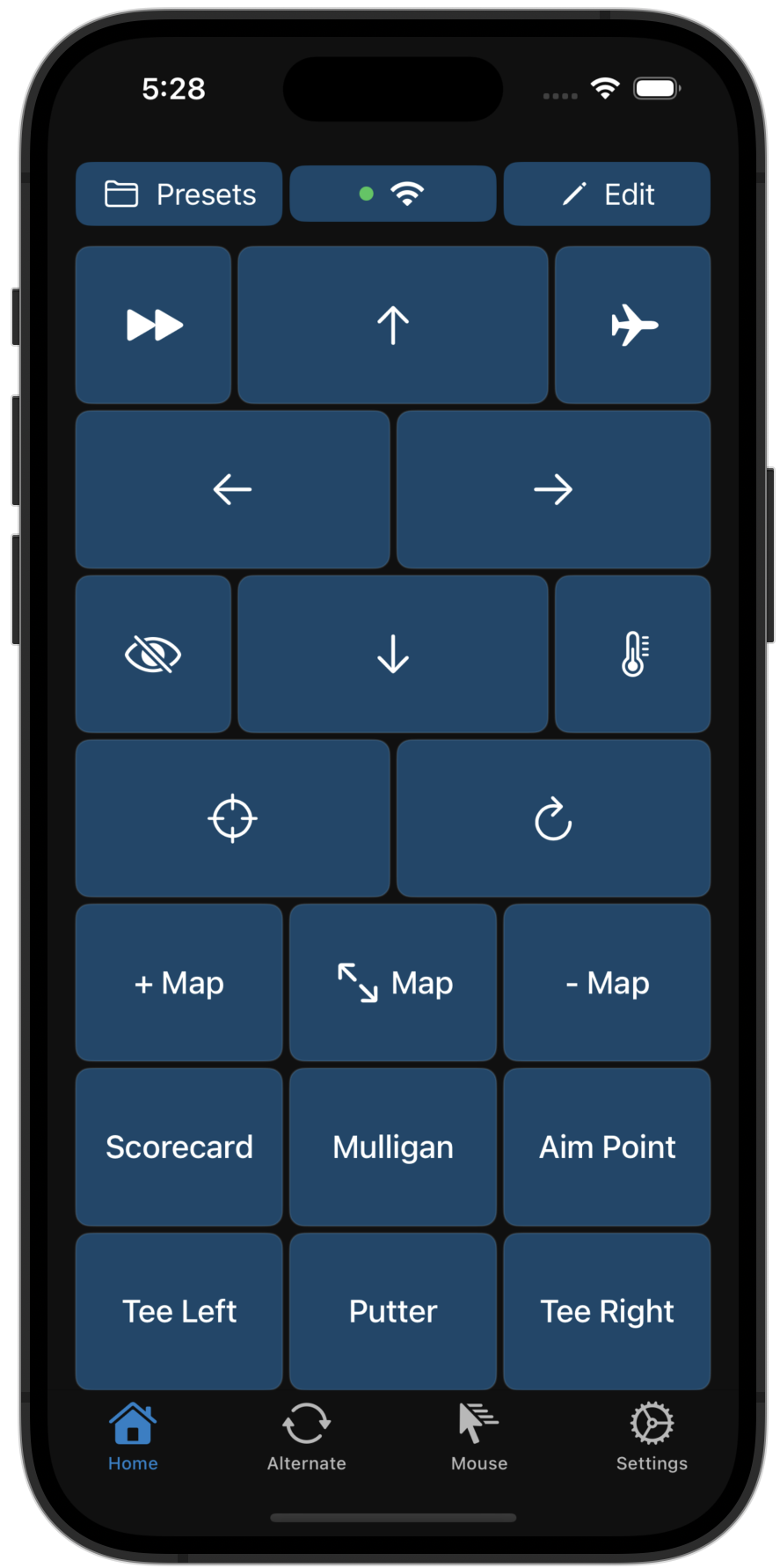
Control your golf simulator with intuitive touch buttons and customizable layouts designed specifically for GSPro™.
Keyboard & Mouse
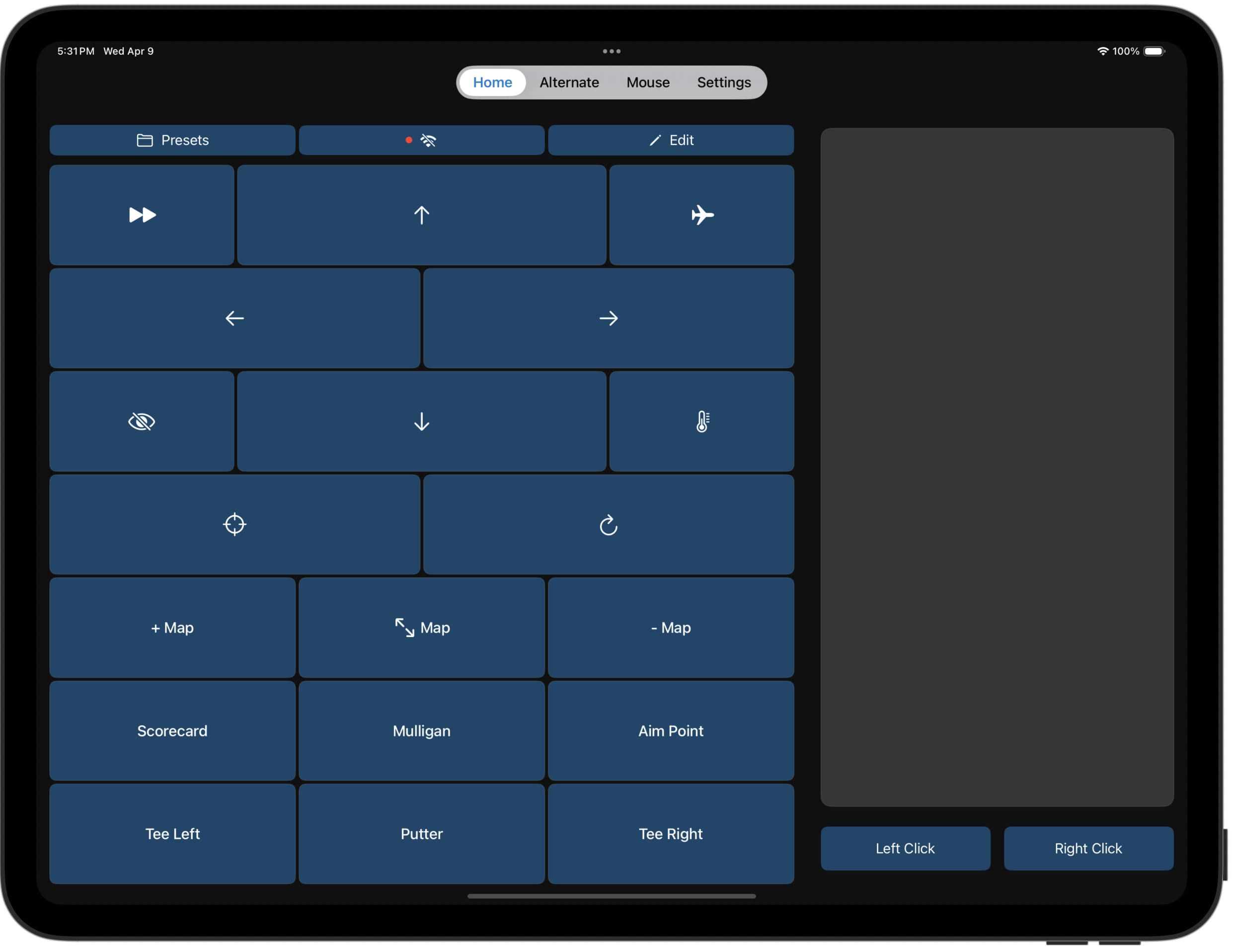
Use your mobile device as a mouse pad and keyboard to control all of GSPro™'s functions.
Powerful Customization
Create, save and load your own presets to customize your preferred layouts.
Macro Builder
Record your own macros to automate repetitive tasks on your PC or within GSPro™.
GSPro™ Compatible
Seamlessly integrates with GSPro™ with all keyboard shortcuts available for use.
Wireless Freedom
Control your simulator setup from anywhere on your network.
How It Works
Get started with TouchCaddie in three simple steps
Download Both Apps
Download the TouchCaddie app on your phone or tablet, and install the required companion server on your Windows PC.
Connect Your Devices
Connect your mobile device to the same WiFi network as your PC and launch both applications.
Start Playing
Start the PC server and connect from the mobile app in the Settings menu and start playing!
Join the TouchCaddie Community
Connect with other TouchCaddie users on Discord. Get help setting up your controller, share your custom layouts, stay up to date with the latest feature announcements, and give us your feedback.
Ready to Supercharge Your Golf Simulator?
Download TouchCaddie today and transform your mobile device into the ultimate golf simulator controller.
Mobile App
The controller app for your phone or tablet. Use it to send inputs to your golf sim PC.
PC Companion App
Required Windows application that receives commands from your phone and controls GSPro™.
App Screenshots
See TouchCaddie in action on iPhone and iPad
Frequently Asked Questions
Find answers to common questions about TouchCaddie
What golf simulation software is compatible with TouchCaddie?
TouchCaddie is designed to work with GSPro™. We're planning to add support for other sim software in the future.
Do I need to download a PC application?
Yes, TouchCaddie requires our Windows PC companion application to relay commands from your mobile device to your golf simulator. You can download it from the Microsoft Store.
What devices are supported?
TouchCaddie is available for both iOS (iPhone and iPad) and Android devices. You can download it from the App Store or Google Play.
How do I connect my device to my PC?
Both your mobile device and PC need to be on the same WiFi network. Launch both the TouchCaddie mobile app and PC companion app and connect from the Settings menu on your mobile device.
Can I customize the controls?
Yes, TouchCaddie offers extensive customizable control layouts to suit your preferences.
Is there any lag when using TouchCaddie?
TouchCaddie is optimized for minimal latency. When used on a stable WiFi network, you'll experience responsive, lag-free control of your golf simulation software.
How does the free trial work?
The trial helps you confirm that TouchCaddie works well on your system and that you are happy with how it works in your setup. Everyone's system and setup is different. Try for 1 month for free and cancel before the trial is over to avoid being charged.
Why is there a cost?
Submitting apps to the app store, buying domains and hosting websites all have a cost. We hope you love the app so much that you don't mind paying a few cents per day to use it.
What are macros?
Macros let you automate multi-step actions. You can chain together mouse movements, clicks, key presses, and waits into a sequence, then assign it to any button on your layout. Macros are great for repetitive actions like starting up your sim software or choosing your team shot in scramble mode.